Git Rebase Conflict Submodules — How to Resolve It Quickly
Published: July 1, 2026 • Written by Alex Rivera • Read Time: 14 min • Word Count: 2,120 words
1. Introduction: The Git Submodule Nightmare
In modern software engineering, modularity is key. We break large codebases into smaller, reusable packages, libraries, or microservices. Git provides a native mechanism to handle this called **Git Submodules**, which allows you to keep a Git repository as a subdirectory of another Git repository.
While submodules are incredibly useful for managing shared dependencies, they are also notorious for causing complex version control issues.
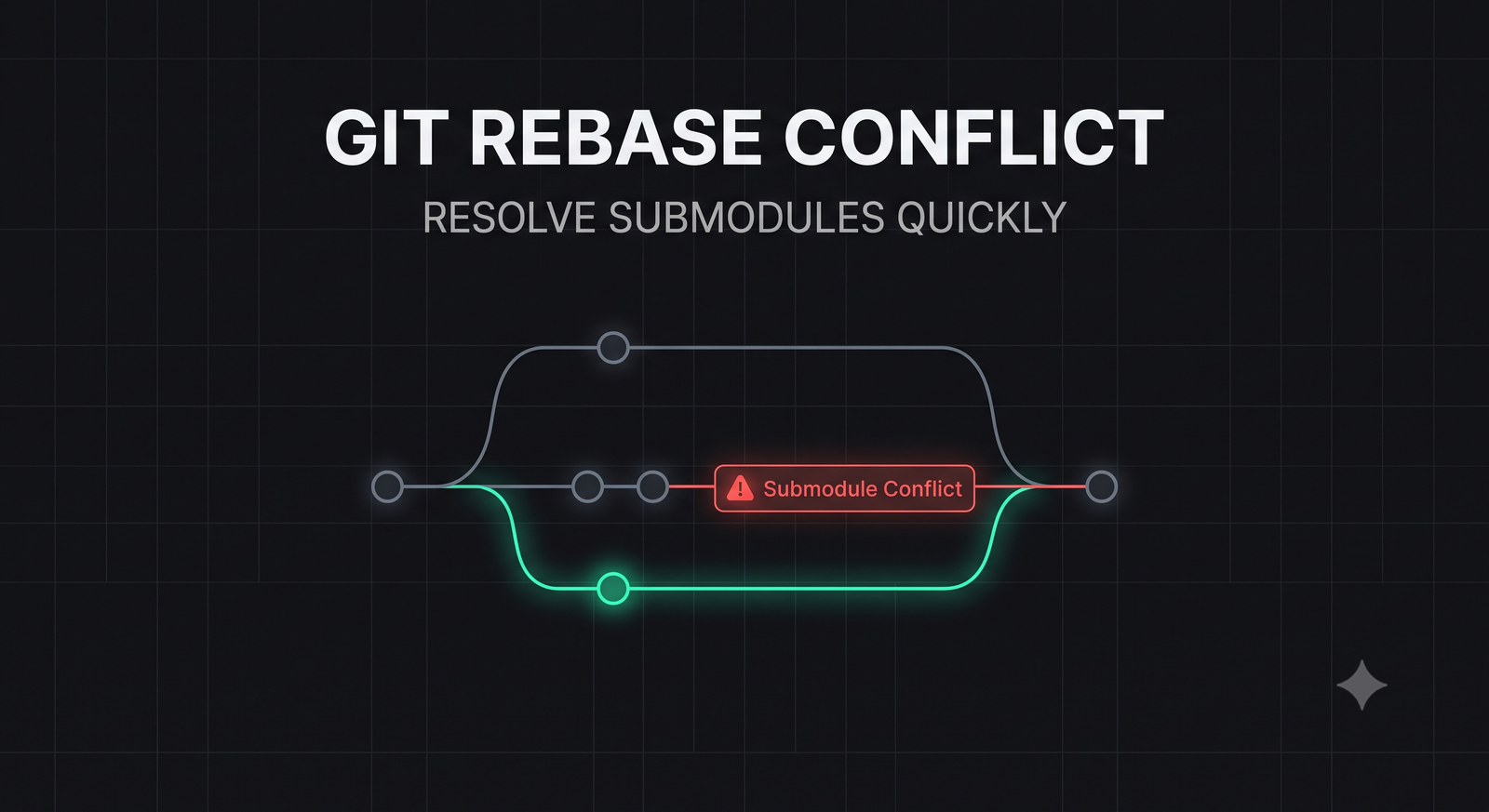
The absolute peak of submodule frustration occurs during a **Git Rebase**. You run `git rebase main` on your feature branch, only to be greeted by a cryptic merge conflict inside a submodule directory. Unlike standard code conflicts where you can open a file, resolve the conflict markers (`<<<<<<<` and `>>>>>>>`), and commit, submodule conflicts present themselves as conflicting **git commit hashes** (gitlinks).
If you don't know exactly how Git tracks submodules, you can easily end up in a loop of broken references, detached HEAD states, or accidentally reverting your team's changes.
In this guide, we will demystify submodule conflicts during a rebase. You will learn why these conflicts occur, how Git tracks submodule states, and a bulletproof, step-by-step workflow to resolve them quickly and safely in 2026.
2. Why Submodule Conflicts Occur During Rebase
To understand why submodule conflicts occur, we must understand how the parent repository (the "superproject") tracks a submodule.
A Git submodule is **not** a copy-paste of files. Instead, the parent repository tracks a submodule using two pieces of information:
- The `.gitmodules` file, which maps the local directory path to the remote repository URL.
- A special directory entry called a **gitlink** (mode `160000`), which is simply a pointer to a **specific commit hash** in the submodule's repository history.
When you perform a rebase, Git attempts to re-apply your feature branch commits on top of the target branch (e.g., `main`). If someone else has updated the submodule pointer on `main` to point to commit `AAAAAA`, and your feature branch has updated that same submodule pointer to point to commit `BBBBBB`, Git does not know which commit hash should win.
Because Git cannot automatically merge two different commit hashes, it stops the rebase and declares a **submodule merge conflict**.
3. Anatomy of a Submodule Conflict
When a submodule conflict halts your rebase, running `git status` will output something like this:
rebase in progress; onto 1a2b3c4
You are currently rebasing branch 'feature/api-upgrade' on '1a2b3c4'.

Unmerged paths:
  (use "git restore --staged <file>..." to unstage)
  (use "git add <file>..." to mark resolution)

	both modified:   libs/shared-utils
If you attempt to open `libs/shared-utils`, you will find it is a directory, not a file, and contains no conflict markers.
To inspect the conflicting hashes, you must run `git diff`:
$ git diff libs/shared-utils
diff --cc libs/shared-utils
index aaaaaaa,bbbbbbb..0000000
--- a/libs/shared-utils
+++ b/libs/shared-utils
@@@ -1,1 -1,1 +1,1 @@@
- Subproject commit aaaaaaa... (Commit on main)
 -Subproject commit bbbbbbb... (Commit on your feature branch)
This output tells you exactly what is happening: the parent repository is conflicted between pointing to commit `aaaaaaa` (from the base branch) and commit `bbbbbbb` (from your feature branch).
In-Content Image Placement
4. Step-by-Step Resolution Workflow
When a submodule conflict occurs, follow this precise, 4-step workflow to resolve it quickly and cleanly:
Step 1: Determine the Correct Submodule State
First, decide which commit hash the submodule should point to:
- Use Theirs (Base Branch): If you want to discard your feature branch's submodule updates and keep the version from `main`.
- Use Ours (Your Feature Branch): If you want to keep your feature branch's submodule updates.
- Merge Within Submodule: If you need to merge changes *inside* the submodule itself, create a new commit inside the submodule, and point the parent repository to that new merged commit.
Step 2: Checkout the Target Commit Hash
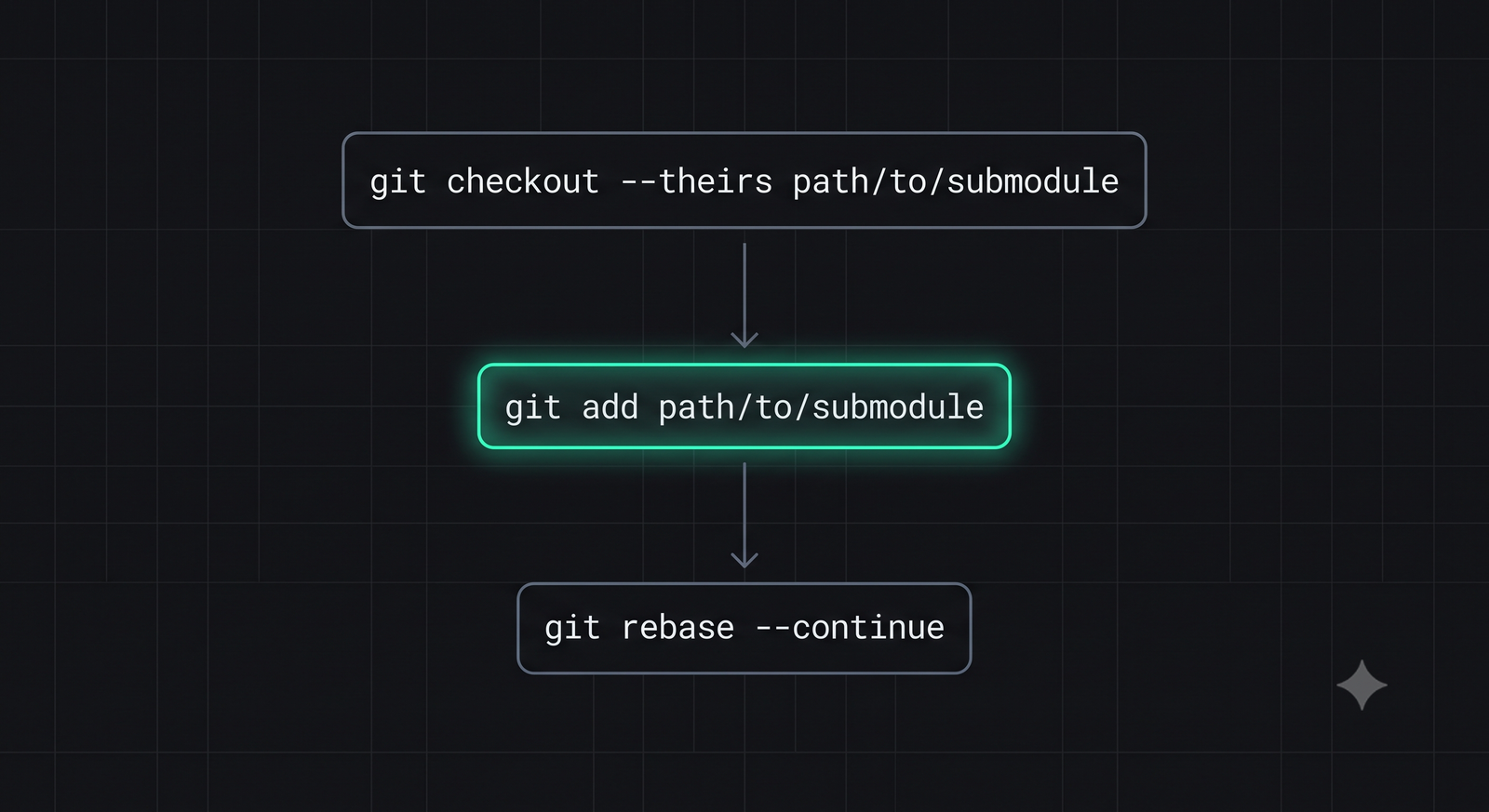
Use Git's checkout command with the `--theirs` or `--ours` flag to instantly resolve the pointer conflict in the parent repository:
# To keep the version from the base branch (main)
git checkout --theirs path/to/submodule

# To keep the version from your feature branch
git checkout --ours path/to/submodule
Step 3: Update the Submodule Files
After updating the pointer in the parent repository, you must tell Git to sync the actual files inside the submodule directory to match that chosen commit hash:
git submodule update --init --recursive
Step 4: Stage the Resolution and Continue Rebase
Once the submodule pointer and files are synced, stage the resolution and resume your rebase:
git add path/to/submodule
git rebase --continue
5. Practical Real-World Example: Merging Submodule Changes
What if both branches made critical, non-overlapping changes inside the submodule, and you need to keep **both**?
Here is the advanced workflow to perform a merge inside the submodule itself and update the parent repository:
# 1. Navigate into the submodule directory
cd path/to/submodule

# 2. Fetch all remote changes for the submodule
git fetch origin

# 3. Merge the conflicting branches inside the submodule
git merge origin/main

# 4. Resolve any code conflicts inside the submodule files, then commit
git add .
git commit -m "merge: integrate main updates into feature branch"

# 5. Push the merged commit to the submodule's remote repository
git push origin HEAD:feature-branch-name

# 6. Navigate back to the parent repository root
cd ../..

# 7. Stage the new merged submodule pointer in the parent repository
git add path/to/submodule

# 8. Continue the parent repository's rebase
git rebase --continue
6. Best Practices & Prevention
To prevent submodule conflicts from disrupting your team's development velocity, implement these best practices:
- Always Sync Submodules on Pull: Configure your global Git settings to automatically update submodules whenever you pull changes from the remote:
git config --global submodule.recurse true
- Avoid Accidental Submodule Commits: Developers often run `git commit -a` and accidentally commit an outdated submodule pointer because they forgot to run `git submodule update`. Always review your staged changes using `git diff --cached` before committing.
- Use Submodule Branches: Pin your submodules to specific tracking branches rather than detached commit hashes. This allows Git to handle updates more predictably:
git submodule add -b main [repository-url] path/to/submodule
7. Conclusion: Master Your Version Control
Git submodules are a double-edged sword. They offer clean dependency boundaries but require a deep understanding of Git's internal tracking mechanisms to manage successfully.
By mastering the `--ours` and `--theirs` checkout workflows, you can resolve submodule conflicts during a rebase in seconds, keeping your repository clean and your development team moving forward without interruption.
To bootstrap a clean, optimized repository setup for your next project, use our interactive .gitignore Generator, or check out our guide on VS Code Profiles Setup to customize your editor for Git workflows.

About the Author: Alex Rivera
Founder & Editor-in-Chief, The Byte 404
Alex is a former Senior Systems Architect at Netflix and Stripe with over 15 years of experience building high-throughput distributed APIs. He writes about distributed systems, backend performance, and AI-native engineering workflows.