VS Code Profiles for Web Developers: The 2026 Setup Guide
Published: July 1, 2026 • Written by Alex Rivera • Read Time: 14 min • Word Count: 2,020 words
1. Introduction: The Bloated Editor Problem
VS Code is an incredibly powerful editor, but its greatest strength—its massive extension ecosystem—is also its greatest weakness.
As web developers, we wear many hats. On any given day, we might be writing React components in TypeScript, debugging a PostgreSQL database, configuring Kubernetes manifests, writing Python scripts for data analysis, or editing Markdown documentation.
To support all of these workflows, we install dozens of extensions. We have Tailwind CSS IntelliSense, Prisma, Docker, Python, ESLint, Prettier, GitLens, and multiple AI assistants.
The result? **A bloated, sluggish editor.**
When you open a simple Markdown file to write a blog post, VS Code is loading your Docker daemon, spinning up a Python language server, and indexing your node_modules folder. This leads to high CPU usage, battery drain, and input lag.
In 2026, the solution is **VS Code Profiles**. This native feature allows you to create completely isolated editor setups, each with its own extensions, settings, keybindings, and themes. This guide will show you how to configure a zero-bloat, hyper-optimized multi-profile setup.
2. Why Use VS Code Profiles?
Before we look at how to set them up, let's understand the tangible benefits of using isolated profiles:
- Unmatched Performance: By only loading the extensions necessary for the current task, you drastically reduce memory usage and startup times.
- Zero Noise: When writing backend Go code, you don't want your editor showing you CSS autocomplete suggestions or ESLint warnings from a different project.
- Clean UI: Hide sidebar panels, status bar items, and terminal tabs that aren't relevant to your current workflow.
- Context-Specific Settings: Configure different font sizes, tab spacings, or auto-save behaviors depending on whether you are coding, writing documentation, or presenting.
3. VS Code Profiles Mechanics
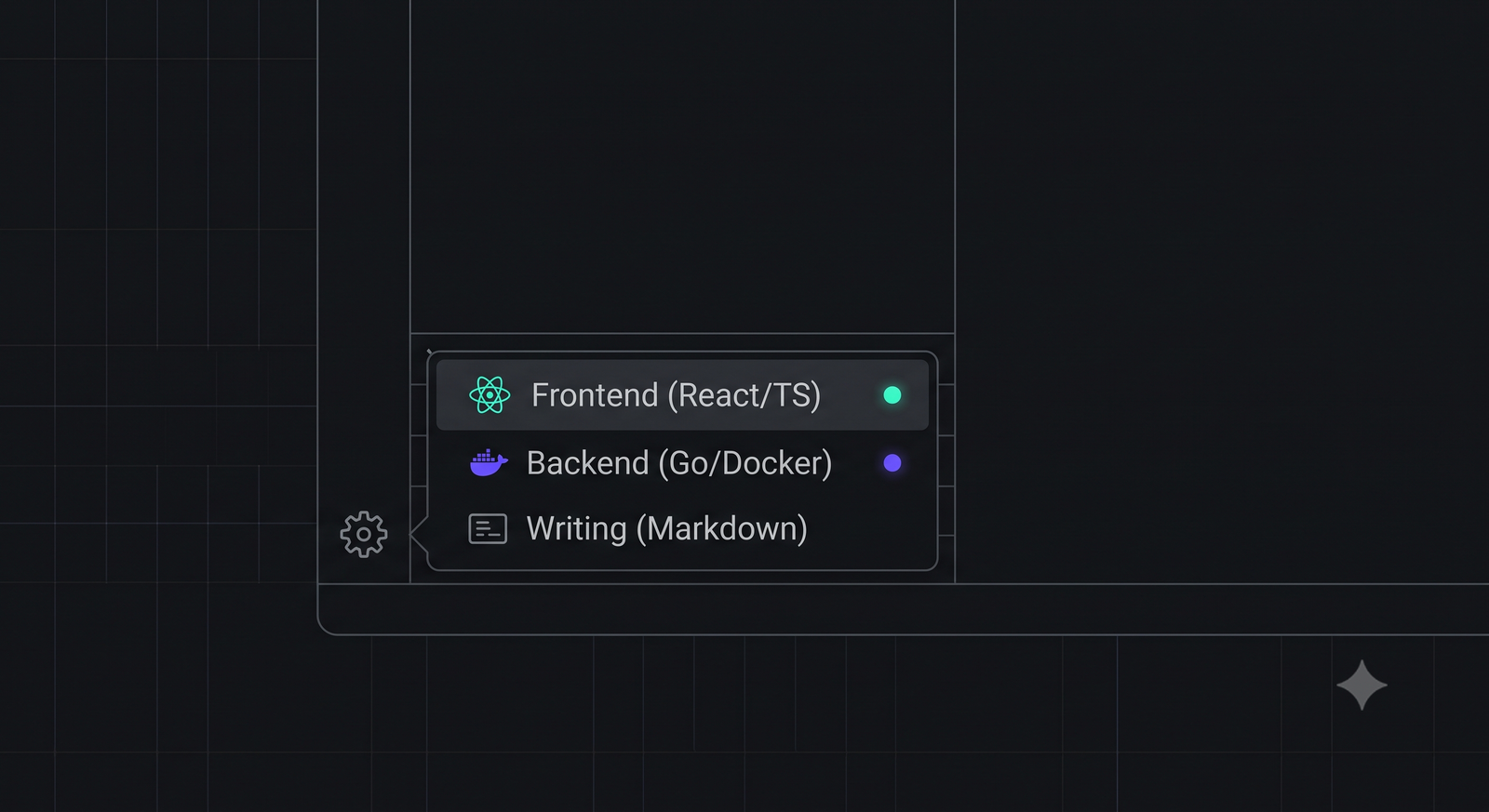
VS Code Profiles are managed via the gear icon in the bottom-left corner of the editor. When you create a profile, you can choose to base it on an existing profile or start from a blank slate.
Each profile isolates the following components:
- Settings (`settings.json`): Global settings are completely isolated.
- Extensions: Only the extensions installed in the active profile will be loaded.
- User Snippets: Custom code snippets are isolated per profile.
- Keybindings (`keybindings.json`): Keyboard shortcuts can be customized per workflow.
- UI State: The layout of your sidebar, activity bar, and panel is preserved per profile.
4. The 3 Essential Profiles Every Web Developer Needs
To maximize productivity, we recommend setting up three core profiles. Let's look at the exact settings and extensions for each:
Profile 1: Frontend (React & TypeScript)
*Goal*: A hyper-focused environment for building user interfaces, optimized for CSS autocomplete, linting, and rapid component creation.
- Core Extensions: ESLint, Prettier, Tailwind CSS IntelliSense, Auto Rename Tag, Simple React Snippets.
- Key Settings:
{
  "editor.formatOnSave": true,
  "editor.defaultFormatter": "esbenp.prettier-vscode",
  "tailwindCSS.experimental.classRegex": ["class:\\s*\"([^\"]*)\""]
}
Profile 2: Backend & DevOps (Node.js, Go, Docker)
*Goal*: Optimized for system-level programming, database management, and infrastructure configuration.
- Core Extensions: Go, Prisma, Docker, YAML, Thunder Client (API Testing), PostgreSQL.
- Key Settings:
{
  "go.useLanguageServer": true,
  "prisma.schemaEditor.formatOnSave": true,
  "files.associations": {
    "*.yaml": "yaml"
  }
}
Profile 3: Technical Writing & Documentation (Markdown)
*Goal*: A distraction-free, zen-like environment for writing blog posts, documentation, and READMEs.
- Core Extensions: Markdown All in One, Spell Right, Word Count.
- Key Settings:
{
  "editor.minimap.enabled": false,
  "editor.wordWrap": "on",
  "editor.lineNumbers": "off",
  "editor.fontSize": 16,
  "workbench.activityBar.location": "hidden"
}
5. Optimizing Profiles for AI-Assisted Workflows
In 2026, AI assistants are deeply integrated into our editors. However, AI tools can be incredibly resource-intensive. To prevent AI tools from lagging your editor, optimize your profile settings:
-
Configure Codebase Indexing Exclusions:
Ensure your AI assistants are not indexing massive build folders or cache directories. Add these exclusions to your global settings:
"files.watcherExclude": { "**/.git/objects/**": true, "**/.git/subtree-cache/**": true, "**/node_modules/*/**": true, "**/.next/**": true, "**/dist/**": true } -
Disable Inline Suggestions in Writing Profiles:
When writing creative content or technical documentation, AI autocomplete can be distracting. Disable inline suggestions specifically in your Writing profile settings:
"editor.inlineSuggest.enabled": false
7. Conclusion: The Zero-Bloat Editor
By investing 30 minutes into setting up isolated VS Code Profiles, you can transform your editor from a sluggish, bloated multi-tool into a collection of hyper-focused, lightning-fast workspaces.
Start with the three core profiles outlined in this guide, and customize them as your workflows evolve. Your CPU, battery, and sanity will thank you.
To generate a precise, clean `.gitignore` file for your newly configured profiles, try our interactive .gitignore Generator, or read our in-depth comparison of Claude Code vs Cursor to see which tool wins the AI agent showdown.

About the Author: Alex Rivera
Founder & Editor-in-Chief, The Byte 404
Alex is a former Senior Systems Architect at Netflix and Stripe with over 15 years of experience building high-throughput distributed APIs. He writes about distributed systems, backend performance, and AI-native engineering workflows.